
Compile and Run Java Applications from the Command Line – Step-by-Step
In this article, we will learn how to compile and run Java applications from the command line. While applications are usually developed and launched through IDEs like IntelliJ IDEA, understanding the process via the command line can help you better understand how Java applications work.
1. Syntax for Compiling and Running from the Command Line
Before running a Java application, you need to compile it. Use the javac command for compilation.
Syntax for javac:
javac [options] [source-files]For example, to compile the MyFirstApp program from the previous lesson, How to Write Your First Java Application, run the following command:
javac MyFirstApp.javaInitially, try compiling without options, then explore available options later. The compilation process generates a .class file for each class in the source file.
After compilation, the application can be launched using the java command.
Syntax for java:
java [options] class [arguments]Example:
java MyFirstAppThis command will display:
"Hello world!"2. Compiling and Running Applications with Multiple Files
Let’s examine a program with multiple files:
public class MyFirstApp {
   public static void main(String[] args) {
       Helper.print();
   }
}
public class Helper {
   public static void print() {
       System.out.print("Hello world!");
   }
}
When compiling MyFirstApp.java, the compiler detects the Helper file and compiles it as well. Run the application as follows:
java MyFirstAppNote: Only the main class name (without the .class extension) is specified during execution.
3. Compilation Using the -d Option
By default, the compiler saves the .class files in the same directory as the .java files. For larger projects, it is preferable to separate source files and compiled files into different directories.
The -d option specifies the output directory for the generated .class files.
Example directory structure:
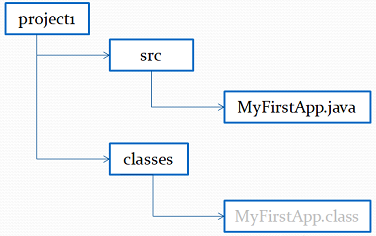
Run the following commands from the project1 directory to compile and place the MyFirstApp.class file into the classes directory:
cd project1
javac -d classes src/MyFirstApp.java
When using packages, the -d option organizes output files according to the package structure:
Example structure:
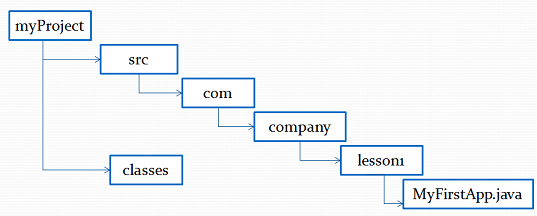
cd myProject/src
javac -d ../classes com/company/lesson1/MyFirstApp.java
Ensure the classes directory exists; otherwise, you may encounter a compilation error.
4. Launching Applications with Java Launcher
Starting from Java 11, you can compile and run a single-file program using a single java command:
java MyFirstApp.javaJava 22 extends this feature to support multi-file programs:
- For learning purposes – simplifies running initial programs.
- For quick experiments without project creation.
- For prototyping small applications.
Frequently asked questions
What's the difference between the javac and java commands?
javac compiles a .java source file into .class bytecode. java runs an already-compiled class on the virtual machine. First compile (javac), then run (java).
Why is the class specified without the .class extension when running?
The java command takes a class name, not a file name. So you write java MyFirstApp, not java MyFirstApp.class — the JVM locates the matching .class file itself.
What is the -d option used for?
The -d option tells the compiler which directory to write the generated .class files into. This keeps source files and compiled files separate, which is convenient in larger projects.
Can I run a Java file without compiling it separately?
Yes. Since Java 11, a single-file program can be run with one command, java MyFirstApp.java — no .class file is created. Since Java 22, this also works for programs made of several source files.
Do I need to compile each file of the program separately?
No. If the main class uses other classes, javac finds and compiles them automatically. Compiling the file with the main() method is enough.
Practice
Reinforce this lesson with hands-on tasks, each with a level and a time estimate.
All module tasks →
Comments